Every successful Shopify store leaves a trail. The theme it runs, the apps it loads, the ad pixels it fires, the products it pushes to the top, the ads it keeps running: almost all of it is public. If you want to know how to spy on a competitor’s Shopify store, you don’t need hacks or paid software. You need a method, about fifteen minutes, and the discipline to use what you find without copying it.
This guide gives you that method in five steps, plus a one-page scorecard, a plain-English look at what you can’t see, and how to turn the findings into decisions. I run this same process before I launch or audit any store.
Skip the manual work: detect any store’s theme, apps and ad pixels in seconds
Paste a store URL and the DigitalEarnHub Shopify Theme Detector shows the theme, theme version, apps loading on the storefront, a rough monthly app cost and the ad and analytics tags firing. The steps below show you how to do each part by hand and what the results mean.
Run the free Shopify Theme Detector →No signup. Paste a store URL or its page source.
The Quick Answer
- Theme: view the page source and search for
Shopify.theme, or use the detector. - Apps: match the scripts the store loads to known app domains.
- Ad pixels: search the source for Meta, TikTok, Google and Pinterest tags, or use a helper extension.
- Best sellers: add
/collections/all?sort_by=best-sellingto the store’s address. - Ads: check the Meta Ad Library, Google Ads Transparency Center and TikTok’s ad tools.
- The rule: use public information only, and never copy images, text or code.
How to Spy on a Competitor’s Shopify Store: The 15-Minute Autopsy
Most people look at a competitor’s homepage and form an opinion. A better approach is to run a fixed checklist every time, so you can compare stores fairly. Here’s the whole job on one page.
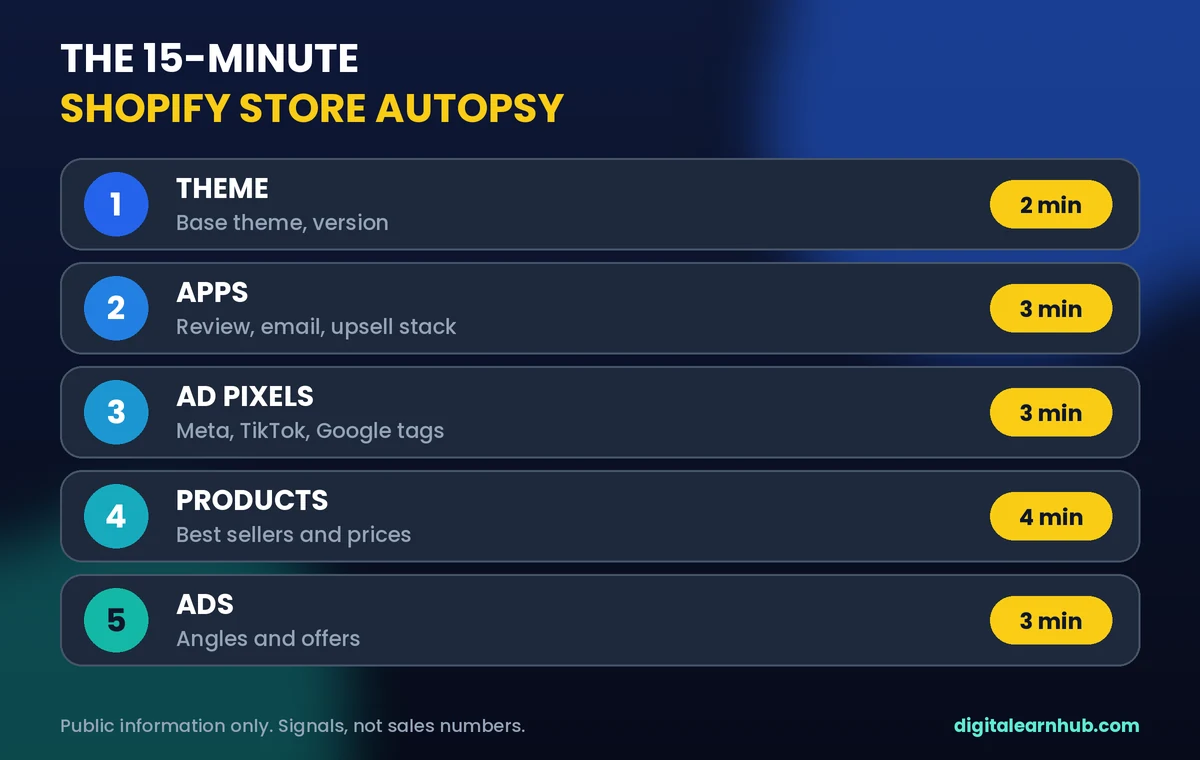
| Step | What you find | Time | Free tool |
|---|---|---|---|
| 1. Theme | Base theme, version, free vs paid | 2 min | Page source or the Theme Detector |
| 2. Apps | Reviews, email, upsell and tracking stack | 3 min | Theme Detector |
| 3. Ad pixels | Where they advertise | 3 min | Theme Detector or a pixel helper |
| 4. Products | Best sellers, price points, new launches | 4 min | Public store URLs |
| 5. Ads | Creative angles and offers | 3 min | Ad libraries |
Step 1: Find the Theme a Shopify Store Uses
Every Shopify storefront includes a small block of JavaScript called Shopify.theme. You can read it in about a minute.
- Open the store in Chrome and press Ctrl+U (Windows) or Cmd+Option+U (Mac) to view the source.
- Press Ctrl+F and search for
Shopify.theme. - Read the object next to it. It looks like this (an example):
Shopify.theme = {"name":"Main Theme","id":123456789,"schema_name":"Dawn","schema_version":"15.0.0","theme_store_id":887,"role":"main"};- name is whatever the owner called the theme in their admin. It can be anything, such as “Live v4.”
- schema_name is usually the real base theme, even after a rename. In this example it’s Dawn, Shopify’s free default theme.
- theme_store_id is a number for themes from the official Theme Store. 887 is Dawn’s ID.
- If theme_store_id is
null, the theme was uploaded as a file. That means a third-party theme bought elsewhere, a heavily modified copy, or a custom build.
What it tells you: a store doing serious volume on a free theme proves you don’t need an expensive one. A paid theme with many add-ons tells you something different. Our best Shopify themes for dropshipping guide explains the options, including Shrine Theme, which builds bundles and upsells into the theme itself.
Let the detector read the theme for you
It checks the schema name first, so renamed themes usually still show their real base. If a store blocks scans, switch to the Paste page source tab.
Detect a store’s theme →No signup. Paste a store URL or its page source.
Step 2: Find the Apps a Shopify Store Uses
Many apps load their own script on the storefront, and that leaves a trail. By hand, search the same page source for the names of common apps, such as reviews, email and helpdesk tools. If an app’s domain appears in a script tag, it’s installed.
The faster way is a detector that matches those scripts against known app domains and adds up a rough monthly cost. That total is useful as a signal, not a bill.
How to read an app stack:
- A lean stack (a few apps on a plain theme) often means the owner values speed and has kept it simple.
- A heavy stack (a dozen or more) can mean lots of features, but each app may add JavaScript and slow the page, which raises the cost of paid traffic.
- Look for duplicates. Countdown timers, announcement bars, free-shipping bars and basic upsells are often things a theme can do already.
A caution: a scan can only see apps that load in a visitor’s browser. Fulfillment, inventory and accounting apps work through the admin and never show up. And on a given page you may miss apps that only load elsewhere, so a missing app means “not visible,” not “not installed.”
Step 3: Find the Ad Pixels (Where They Advertise)
A store’s tracking tags show which ad platforms it likely uses. That’s one of the quickest ways to learn where a competitor spends money. Search the page source for these names:
| Platform | Search the source for | Helper tool |
|---|---|---|
| Meta (Facebook and Instagram) | fbq( or fbevents.js | Meta Pixel Helper |
| TikTok | ttq.load or analytics.tiktok.com | TikTok Pixel Helper |
| Google (GA4, Ads, GTM) | gtag/js?id=, IDs starting G-, AW- or GTM- | Google Tag Assistant |
pintrk( | Pinterest Tag Helper | |
| Snapchat | snaptr( | Snap Pixel Helper |
Names and file paths change over time, so treat these as starting points.
The catch with Shopify: pixels installed through Shopify’s Customer Events run inside a sandbox, so they don’t always appear as plain code in the page source. A good detector also reads the store’s web pixel list, which is why a pixel helper extension and a detector together give a better picture. And the server-side side of tracking, such as Meta’s Conversions API, is invisible from outside.
What it tells you: a Meta and TikTok pixel suggest paid social. A Google Ads ID (AW-) suggests Search or Shopping. No ad pixels at all suggests the store relies on organic, email or marketplaces, or runs tracking you can’t see. A pixel shows that a platform is connected, not how much they spend or whether it works.
See the ad and analytics tags in one scan
The detector lists the tags firing on the storefront, so you can see where a store likely advertises before you open a single ad library.
Check a store’s ad pixels →No signup. Paste a store URL or its page source.
Seeing a pixel isn’t the same as running one well. If your own pixels are misfiring or you need server-side tracking set up, that’s work I do. And if you’re launching ads of your own, tag every link with our free UTM builder so you can see what drives sales. On TikTok, TikTok for Business is where you set up your pixel.
Step 4: Find the Best Sellers, Prices and New Products
Shopify gives every store a built-in best-seller sort, and it’s public.
- Go to
storename.com/collections/all, which lists every product. - Add
?sort_by=best-sellingto the end:storename.com/collections/all?sort_by=best-selling. - You’ll see the catalog ordered by the store’s own best-seller ranking. Do the same for individual collections.
What else to check:
- Price points and bundles. Note the top five products, their prices, and how they’re packaged.
- New launches. Many stores have a
/sitemap.xmlthat lists products, collections and pages. Checking it over time shows what they add. - The public product feed. Many stores expose
/products.json, which lists products in a structured format. Some stores disable it, so it won’t always work.
Three honest limits. The best-seller sort shows a ranking, not sales numbers. Store owners can customize or hide it. And a product being popular doesn’t mean it’s profitable, so run the margin through our dropshipping profit calculator before you copy anything. If you find a product worth selling, sourcing platforms such as CJdropshipping and HyperSKU are two places to look.
Step 5: Find the Ads a Competitor Is Running
Three free libraries cover most of what you need, and none require you to log in to a competitor’s anything.
| Library | What it shows | Limits |
|---|---|---|
| Meta Ad Library | Active ads on Facebook and Instagram, by advertiser | No spend or results data |
| Google Ads Transparency Center | Ads across Search, YouTube and Display, by advertiser | No keywords or performance data |
| TikTok Creative Center | Top-performing ads by region and category | A leaderboard, not every ad a specific brand runs |
TikTok also has a Commercial Content Library for ads shown in the EU. If you need to search TikTok and Meta ads more deeply, paid ad-research tools like Minea and PiPiAds add filters and search, though the free libraries are enough to start.
How to read what you find:
- Look at ad age. An ad that has run for months is often one the advertiser keeps because it works, while constant swapping suggests they’re still testing. It’s a hint, not proof.
- Note the angle, not the wording. Is it a problem-solution, a demo, a testimonial, a discount?
- Check where the ad lands. The landing page often matters more than the ad.
What You Can’t See
Be careful about tools or articles that promise a competitor’s exact revenue. From the outside you can’t see:
- Revenue, order counts, profit or conversion rate.
- Ad spend, or how well an ad performs.
- Server-side tracking, such as the Conversions API.
- Admin-only apps like fulfillment and accounting.
- Anything behind a password page or on a headless store with no standard theme.
What you’re really collecting is signals, and signals are best used together. A theme, an app stack and a pixel list can’t tell you if a store is winning. Months of consistent ads, a stable best-seller list and a lean, fast storefront can.
Turn What You Find Into Decisions
The point isn’t to copy. It’s to decide faster. After each autopsy, write down answers to four questions:
- Stack: Which theme and apps do the best stores in my niche use, and which of those do I really need? If your theme can handle bundles and upsells, you may save on apps. Our theme review helps you compare.
- Offer: What do their top products, bundles and prices say about what shoppers accept? Where can I be better, with a stronger bundle, clearer shipping or a guarantee?
- Ads: Which angles keep showing up, and which one can I test first with my own creative?
- Margin: Do the numbers still work for me?
Then test one change at a time. If you’re building from scratch, you can start a Shopify store here and compare your results against what you learned. And if email is part of your plan, see our guide to the best email marketing for Shopify stores.
Ready to apply what you learned?
Run a scan on three competitors this week, fill in the scorecard, then build your own store with a cleaner stack.
Scan a competitor now → Start a free Shopify trial →Is It Legal and Ethical?
Looking at public pages, page code and public ad libraries is ordinary market research. Where it goes wrong:
- Bypassing passwords or logins. Don’t.
- Heavy automated scraping that breaks a site’s terms or overloads it.
- Copying images, product descriptions, branding or custom code. Those are protected. Write your own and shoot your own photos.
- Misleading customers by imitating another brand.
Using the same theme as another store is normal, but you need your own license for any paid theme. This isn’t legal advice, so check your local rules and each theme’s license.
How to Protect Your Own Store
Everything above works on you, too. You can’t hide your theme or pixels completely, but you can make it harder for others to read your best sellers, for example by customizing your all-products collection or removing the best-selling sort. The better defense is a store that’s hard to copy: your own photos, a strong brand, clear guarantees and better service. And if you want a store checked for tracking problems, theme speed or app bloat, I can help with that.
Frequently Asked Questions
How can I see what theme a Shopify store is using?
View the page source and search for Shopify.theme. The schema_name field usually shows the real base theme, even if the owner renamed it. If theme_store_id is a number, it’s a Theme Store theme. If it’s null, the theme was uploaded as a file. Or paste the store URL into a theme detector and read the result.
How do I see which apps a Shopify store uses?
Look at the scripts the storefront loads and match their domains to known apps, or use an app detector that does this for you. Apps that work only in the Shopify admin, such as fulfillment or accounting apps, don’t load anything on the storefront, so they won’t show up.
Can I see how much money a Shopify store makes?
No. Public pages don’t show revenue, orders or conversion rates, and any tool that claims exact figures is estimating. You can see relative popularity, such as the best-selling sort order, but not sales numbers.
Is it legal to spy on a competitor’s Shopify store?
Looking at public pages, public ad libraries and page code is normal market research. It stops being fine if you bypass logins or passwords, scrape in ways that break a site’s terms, or copy images, text, branding or custom code. This isn’t legal advice, so check the rules where you operate.
How do I find the best-selling products on a Shopify store?
Open the store’s /collections/all page and add ?sort_by=best-selling to the end of the URL. That sorts the catalog by the store’s own best-seller ranking. Some stores customize or hide this, and it shows order, not sales numbers.
How can I tell which ad pixels a Shopify dropshipping store uses?
Search the page source for pixel names such as fbq for Meta, ttq for TikTok, gtag for Google and pintrk for Pinterest, or use helper extensions like the Meta Pixel Helper. Pixels installed through Shopify’s Customer Events run in a sandbox, so a good detector also reads the store’s web pixel list.
How do I find a competitor’s ads?
Use the free ad libraries: the Meta Ad Library, the Google Ads Transparency Center, and TikTok’s Creative Center or Commercial Content Library. They show active ads and creative, but not spend or results.
Why does a theme detector show a different theme name than the store’s admin?
Store owners can rename their theme to anything, so the display name may not match the original. The schema_name field normally keeps the base theme name. When the two differ, the base theme is usually the more reliable answer.
Why can’t I see all of a store’s apps?
A scan only sees what loads in a visitor’s browser, and usually on the page you scan. Apps that work in the admin, load only on certain pages, or run server-side won’t appear. A missing app means not visible, not definitely absent.
Does this work on headless or password-protected stores?
Not reliably. Headless stores don’t use a standard Shopify theme, and password-protected stores only show a password page to the public. In both cases there’s little theme or app code to read.
What should I do with what I find?
Use it to make decisions, not to copy. Compare your theme and app stack, find offers and price points you can beat, and plan ad angles to test. Then check the margin on any product with a profit calculator before you spend on ads.
Final Thoughts
You can learn a surprising amount about a competitor’s Shopify store in fifteen minutes: the theme and version, the app stack, the ad platforms, the products they push and the ads they keep running. None of it is a secret. The edge comes from doing it consistently and acting on it with your own ideas, photos and offers.
Start with the detector, then work through the five steps on three stores in your niche. Fill in the scorecard, pick one thing to test, and keep the margin honest.
Start your first competitor scan
Pick three stores in your niche and scan them now. It takes seconds per store, and the report is yours to copy.
Open the Shopify Theme Detector →No signup. Paste a store URL or its page source.